YOUR BRANTLEY’S FAVORITES
GOOD FOOD.
GREAT CHOICES.
Find your favorite. Make it a meal.
 Put Brantley’s on your phoneAdd our icon to your Home Screen for one-tap menu & ordering. iPhone & Android.
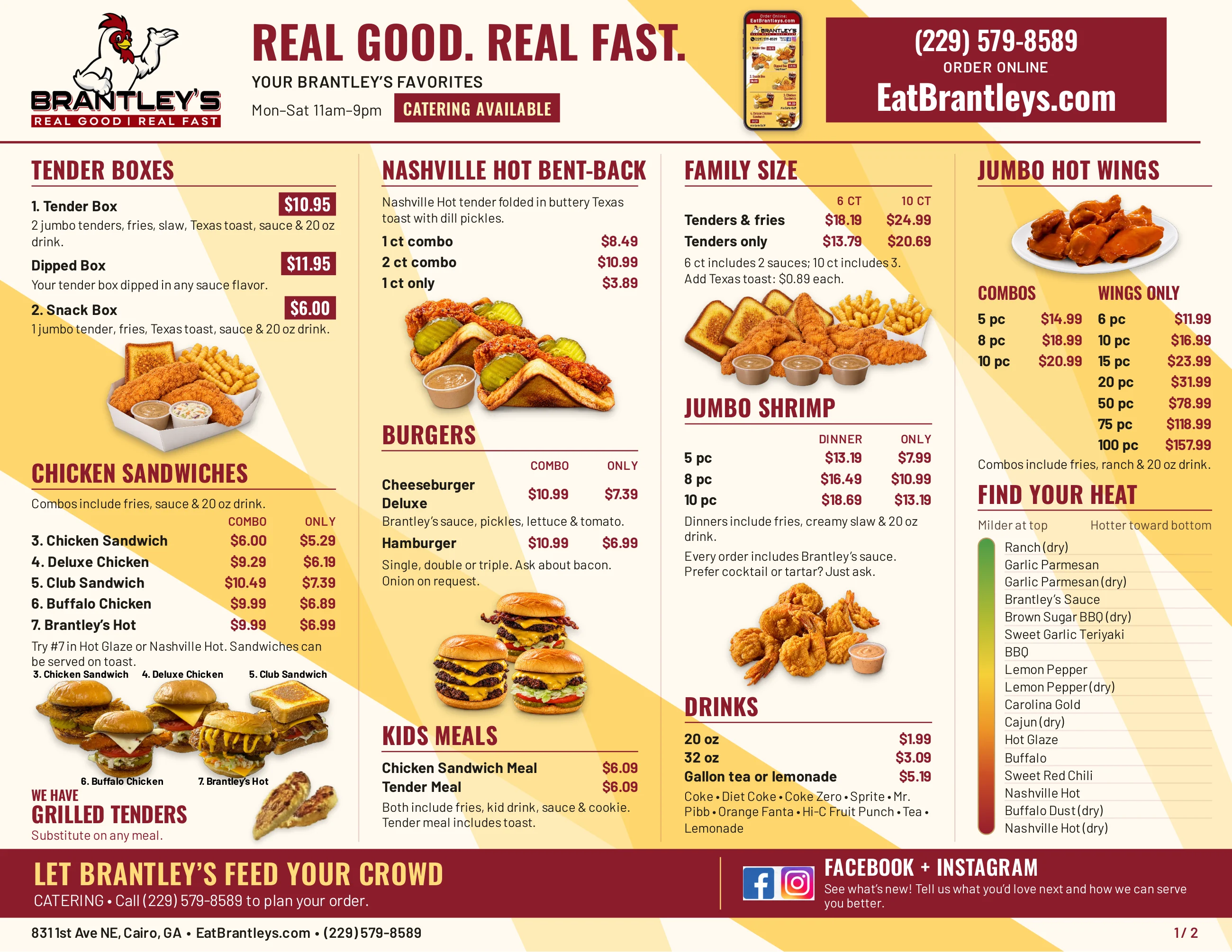
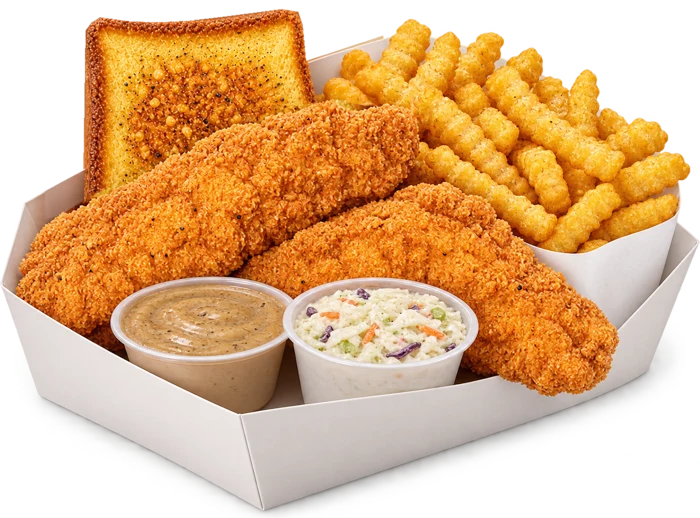
Favorites & meals
PAGE 1 OF 2Tap either page to open the complete two-page menu.

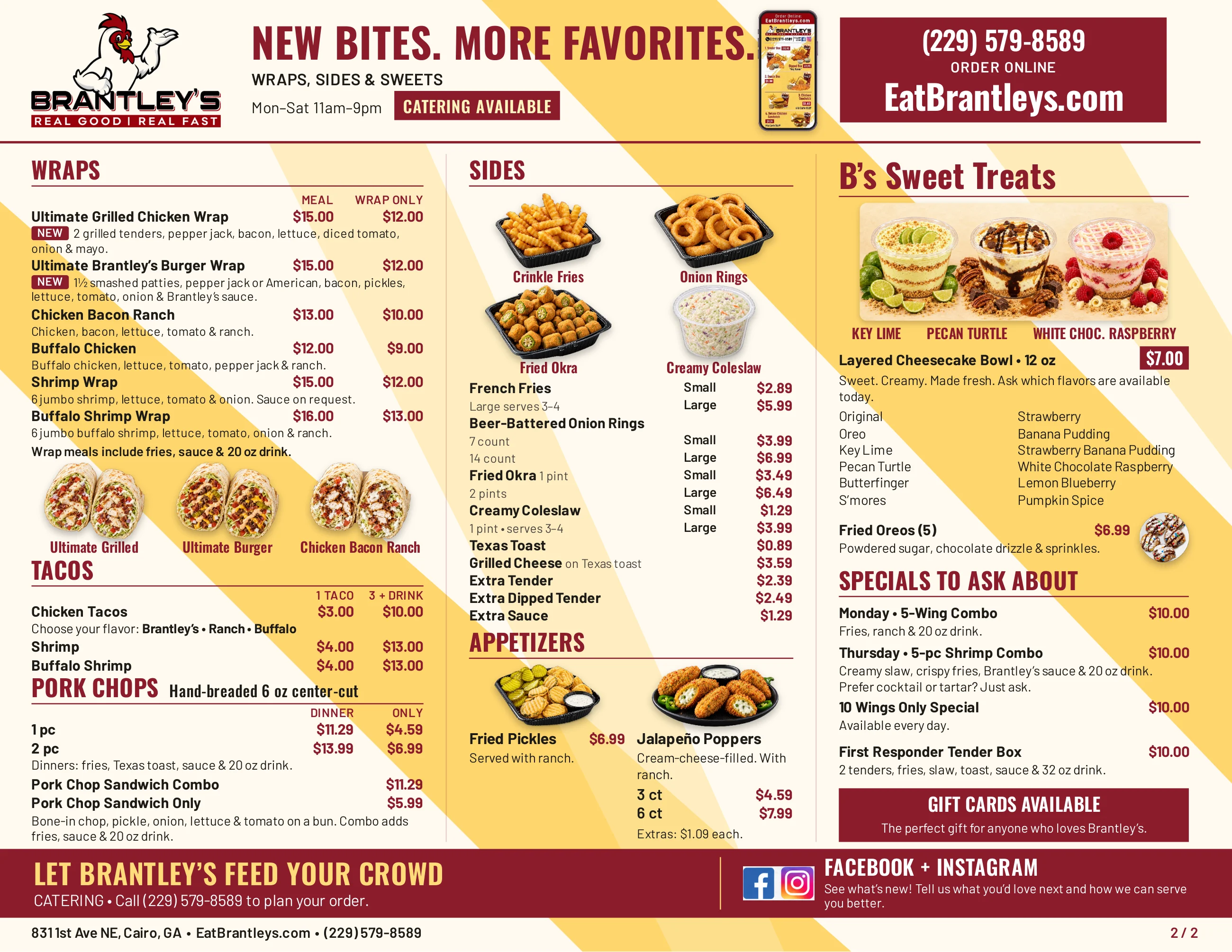
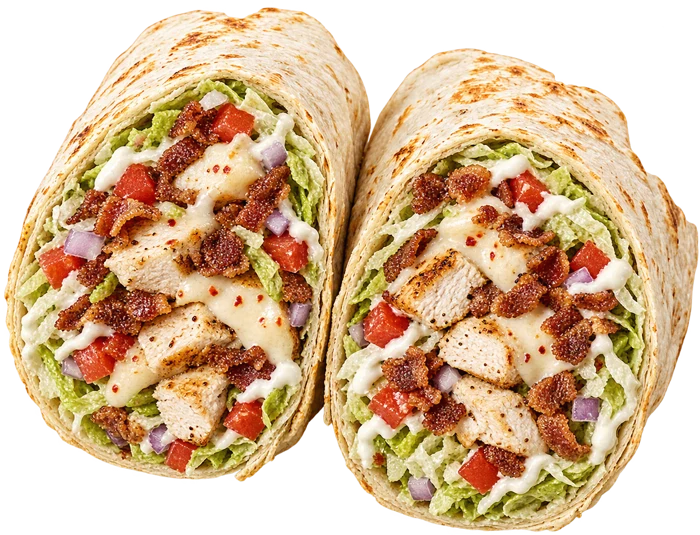
Wraps, sides & sweets
PAGE 2 OF 2Tap either page to open the complete two-page menu.

FOUND YOUR FAVORITE?
Let’s make it a Brantley’s meal.
Place your order online at EatBrantleys.com.
ONE TAP TO YOUR FAVORITES
Save Brantley’s to your Home Screen
Get the Brantley’s icon on your phone, just like an app. Tap it anytime to see the menu and order online. Nothing to download from the App Store or Google Play.
You’re all set. You opened Brantley’s from your Home Screen.
Your phone will ask you to confirm. Tap Install or Add.
Use Safari, the blue compass app. If you opened this page from Facebook, Messenger, a text or an email, use the steps first.
- 1Tap the Share button (the square with an arrow pointing up). Don’t see it? Tap the three dots at the bottom first, then tap Share.
- 2Scroll down the list and tap Add to Home Screen. You may need to tap View More to see it.
- 3Leave Open as Web App turned on if you see it, then tap Add in the top corner.
- 4Look for the Brantley’s chicken icon on your Home Screen. Tap it anytime.
Using Chrome on iPhone? Tap the Share button next to the web address, then Add to Home Screen. If it isn’t there, open this page in Safari instead.
Use Chrome or Samsung Internet. If you opened this page from Facebook, Messenger, a text or an email, use the steps first.
- 1In Chrome, tap the three dots in the top right corner.
- 2Tap Add to Home screen, Install app, or Install and create shortcut. The name depends on your phone.
- 3Tap Install or Add. If your phone asks, tap Add automatically.
- 4Look for the Brantley’s chicken icon on your Home Screen or in your apps list.
Samsung Internet: tap the menu at the bottom, then Add page to → Home screen.
Facebook, Messenger, Instagram, Gmail and texting apps open links inside their own mini browser, and those can’t save to your Home Screen. Open this page in your phone’s real browser first.
- 1Look at the top or bottom of the screen for the Safari compass , the Share square , or the three dots .
- 2Tap Open in Safari on iPhone, or Open in Chrome / Open in browser on Android.
- 3Once the page opens in Safari or Chrome, scroll back here and follow the or steps.
No “Open in” option? Copy the link, open Safari or Chrome yourself, and paste it into the address bar.
Need help?
I followed the steps but they didn’t work
Most of the time, the page is open inside another app like Facebook, Messenger, Gmail or a text message. Look for the Safari compass, the Share square, or the three dots and choose Open in Safari or Open in browser. Then try the steps again from Safari or Chrome.
I don’t see “Add to Home Screen” on my iPhone
Make sure you’re in Safari. In the Share list, scroll all the way down and tap Edit Actions, then add Add to Home Screen. If you’re in Chrome or another app, open this page in Safari instead.
I don’t see “Add to Home screen” on my Android
Open the page in Chrome and look for Install app or Install and create shortcut in the ⋮ menu. They do the same thing. If none of these appear, you may already have the icon, so check your Home Screen and apps list. A locked Home Screen layout can also block it: press and hold an empty spot on your Home Screen, open Home settings, and turn off Lock Home screen layout.
The icon doesn’t show the Brantley’s logo
Delete the icon from your Home Screen, reload this page in Safari or Chrome, and add it again. Your phone saves the icon when you first add it.
Does this cost anything or use storage?
No. It’s a free shortcut to this page, with nothing to download from the App Store or Google Play. You can remove it anytime by pressing and holding the icon.
Still stuck? Ask a question.
Type what’s happening, like “I don’t see Add to Home Screen” or “I’m in Facebook.” This helper only answers questions about saving Brantley’s to your phone.
CATERING AVAILABLE